Parent Page
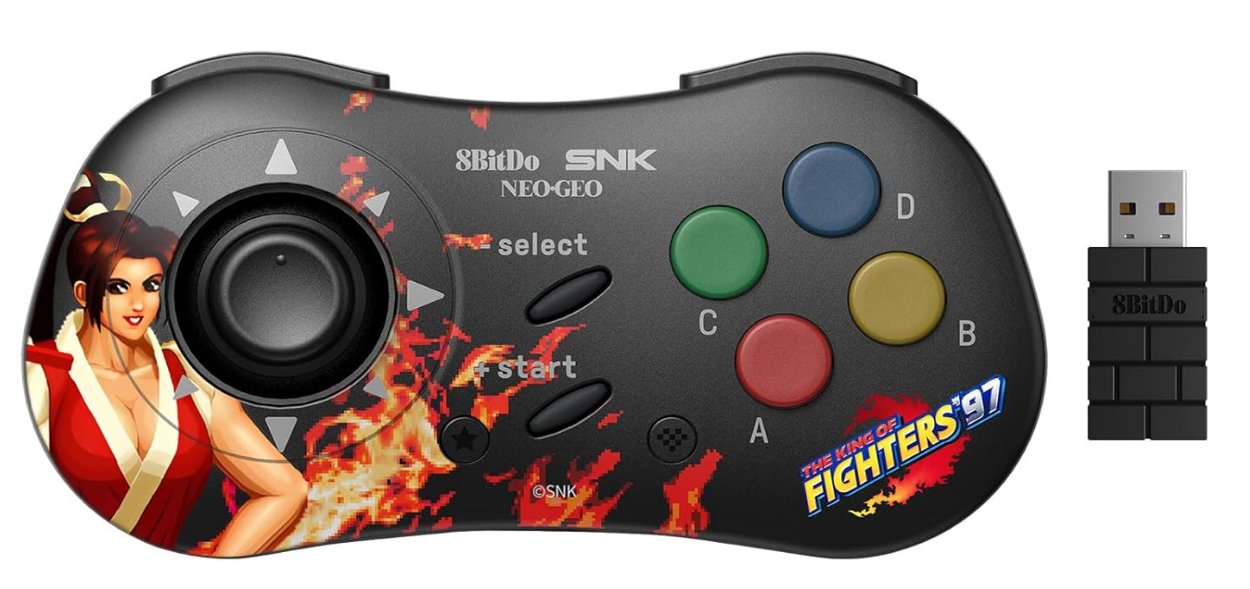
8BitDo neogeo Controller
Links
Specs
- 300mAh Li-on battery, rechargeable
- 35 play hours with 1 hour charging time
- Turbo function
- 2.4g
- Bluetooth
- USB Wired
Connecting to Windows
- Connect 2.4g Adapter (Black Brick) to USB Port of windows
- Turn mode switch on Bottom of controller to 2.4G
- Press the start button. Status LED becomes solid when connected.
- You can also connect using USB Cable to USB C Port of Windows.
- For some reason they do not recommend using Bluetooth with windows?
Connecting to Android
- Turn mode switch on Bottom of controller to Bluetooth
- Press the pair button on back of controller, to enter Bluetooth Paring Mode.
- Status LED starts to rotoate from Left to Right.
- In Android Pair with BbitDo NEOGEO GP.
- Status LED becomes solid when connected.
Connecting to Neo Geo Mini
- Press and Select + Down to switch Button Layout for Neo Geo Mini. Power LED Blinks Once. Will be saved.
- Connect 2.4g Adapter (Black Brick) to USB port of neo geo mini
- Turn mode switch on Bottom of controller to 2.4G
- Press the start button. Status LED becomes solid when connected.
- You can also connect using USB Cable to USB C Port on Neo Geo Mini.
D-Pad Switch
- Press Button Combo for 5 seconds. Power LED Will Blink Once
- Select + Up D-Pad
- Select + Left = Left Stick
- Select + Right = Right Stick.
- Select + Down = NEO GEO MINI Mode.
Re-Pairing with 2.4 Adapter
- Plug black brick 2.4g dongle into USB Plug
- Switch Modeo on Bottom of controller to 2.4G
- Pess start button to turn on Controller
- Hold Pair button on back of controller to enter pairing mode.
- Put controller close to brick. LED Becomes solid when connected.
Bluetooth Pairing Mode
Press and Holder Pair Button On Back of device. Press and Hold for 2 seconds to enter Pairing Mode. LEDS Pause for 1 second then start to rotate again. LEDS becomes solid when connection is successful.LED Indicator
- Solid Red -> Battery Charging
- Blinkinf Red - low battery mode
- Led Turns off -> After Battery is fully charged
Turbo Function
- Hold the button you would like to set turbo functionality to/li>
- then press star button active/deacivate turbo<
Special Function Buttons
- Start -> Press to turn on. Hold for 3 seconds to turn off. Hold for 8 seconds to force turn off
- Star -> Turbo
- Select -> I guess just map a select button?
- Home -> ?
Front LEDS
What are the small LEDs for on the bottom of the controller? They are controller mode indicators:- A. LED 1 blinking: D-input mode
- B. LED 2 blinking: X-input mode (Xbox 360 mode)
- C. LED 3 blinking: macOS mode
- D. LED Rotating: Switch mode or pairing mode
- E. Solid LED: connection is successful